
Portainer Really Is Showing Its Age
I love tinkering with Raspberry Pis. I had a Pi 4B that I hacked on for years.
Before GPU prices went through the roof last year, I bought a Pi 5 online and had a blast with it. For the container layer, I used Portainer just like I did on the 4B.
Portainer is great when you’re starting out: it has a UI, clickable buttons, one-click stack deployment, and you don’t need to memorize docker compose commands just to change an environment variable. But the longer you use it, the more small annoyances keep recurring.
For instance:
- Change a single line in environment variables, and the UI forces a full redeployment of the entire stack.
- “Re-pull image” works sometimes, and completely fails to pull other times.
- Whenever an image didn’t seem to update, I always had to SSH in as a fallback.
- In a multi-service stack, changing code for just one service forced all others to recreate.
- Image version management felt clunky (partly due to my own overuse of the
:latesttag).
Hardware Background
| Item | Specification |
|---|---|
| Host | Raspberry Pi 5 Model B (8 GB RAM) |
| CPU | ARM Cortex-A76 4 cores @ 2.4 GHz, aarch64 |
| System Drive | WD Black SN770 NVMe 250 GB |
| Storage Drive | WD Red 4 TB (USB 3.0) |
| OS | Debian 12 bookworm, Kernel 6.6.31+rpt-rpi-2712 |
| Container Count | 32 resident containers across 17 Portainer stacks |
Getting Started
I discussed this with Claude, and it pointed out the root of Portainer’s awkwardness:
Portainer feels clunky partly because its UI wraps compose semantics with an aggressive force-recreate shell, and partly because of caching issues with mutable tags.
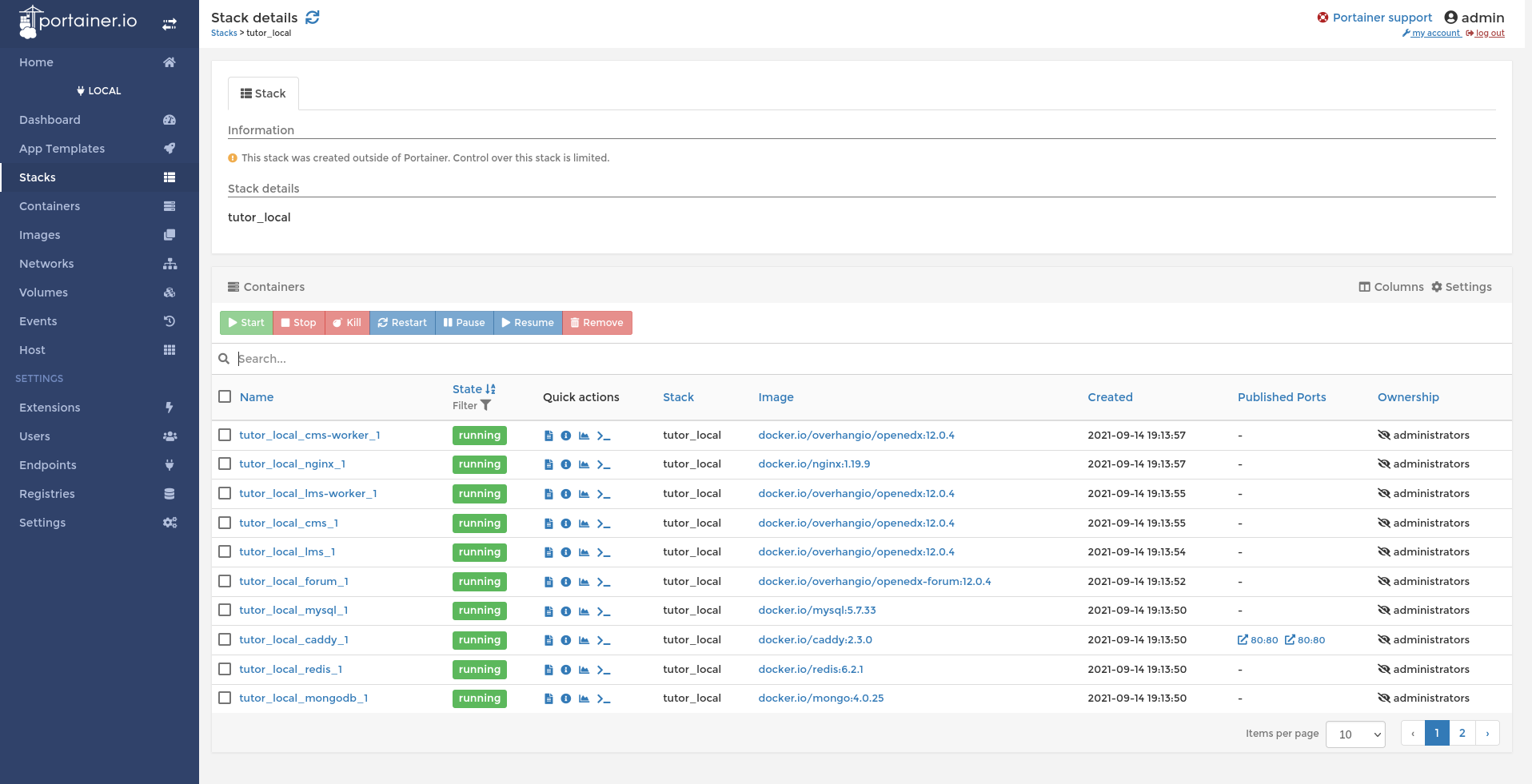
Portainer management interface
Switching tools solves the former. Claude suggested giving Dockge a try:
Bottom line upfront: swap the UI layer for Dockge.
Pain Point 1 (outdated compose/stack management) + Pain Point 3 (no translations) → Dockge
Built by Louis Lam (author of Uptime Kuma), it’s currently the best solution and hits your preferences squarely:
- File-based architecture: every stack is a standard
compose.yaml+.envlocated in/opt/stacks/. The core design principle is that “compose files should be manageable with standard docker commands, not locked into proprietary formats.” This means Dockge is merely a UI view; you can alwayscd /opt/stacks/xxx && docker compose ...on the underlying files directly—fully matching your idempotent/reproducible requirements, and naturally allowing the entire folder to be tracked in git. - Supports 31 languages via vue-i18n, community-translated on Weblate (including Simplified Chinese). Pain Point 3 solved out of the box.
- Multi-arch images: amd64/arm64/armv7, including Raspberry Pi; v1.5 added multi-agent support to manage multiple Docker hosts from one dashboard; nearly 22,000 GitHub stars.
Nothing more needed to be said—let’s do it.
Pre-Migration Preparation
First, set up the directories:
1sudo mkdir -p /opt/dockge/data /opt/stacks/opt/stacks serves as the root directory for Dockge stacks, where each subdirectory represents a stack.
Create /opt/dockge/compose.yaml:
 1services:
 2  dockge:
 3    image: louislam/dockge:1
 4    container_name: dockge
 5    restart: unless-stopped
 6    ports:
 7      - 5001:5001
 8    volumes:
 9      - /var/run/docker.sock:/var/run/docker.sock
10      - /opt/dockge/data:/app/data
11      - /opt/stacks:/opt/stacks
12    environment:
13      DOCKGE_STACKS_DIR: /opt/stacks
Here is an easy-to-miss gotcha: DOCKGE_STACKS_DIR inside the container must match the path on the host identically. Dockge calls the host’s docker compose via docker.sock, and compose resolves absolute host paths—so the host and the container must see the exact same /opt/stacks path string.
Fire it up:
1cd /opt/dockge && sudo docker compose up -dOpen http://192.168.0.110:5001 to create an administrator account.
Once Dockge starts, it scans two categories of things:
- Subdirectories under
/opt/stacks/—each recognized as a managed stack. - Running stacks discovered via the Docker API whose project names are not in
/opt/stacks/—labeled as “this stack is not managed by Dockge.”
Migration Strategy
I had Claude tackle stacks in batches: it completed a batch, and I verified each one.
The migration pattern was straightforward:
 1# On the Pi for each stack
 2sudo mkdir -p /opt/stacks/<project>
 3sudo cp /var/lib/docker/volumes/portainer_data/_data/compose/<id>/docker-compose.yml \
 4/opt/stacks/<project>/compose.yaml
 5sudo cp /var/lib/docker/volumes/portainer_data/_data/compose/<id>/stack.env \
 6/opt/stacks/<project>/.env
 7
 8# Down at old location
 9sudo docker compose -f /var/lib/.../compose/<id>/docker-compose.yml -p <project> down
10
11# Up at new location
12cd /opt/stacks/<project> && sudo docker compose up -d
Let’s look at three representative examples.
- First:
private-registry
A private container registry with data bind-mounted at /opt/docker-registry. Used as our warmup exercise.
First discovery: clicking “Remove stack” in the Portainer UI actually runs docker compose down, immediately killing all running containers along with it.
- Second:
photoview+mariadb
Multi-container setup with a database. Verified that under Dockge, service-to-service DNS, depends_on healthchecks, and bind-mounted database data are all preserved.
Photoview’s compose file referenced several environment variables (like ${MARIADB_USER}), so the .env file had to be migrated alongside it.
Second discovery: Portainer saves environment variables in stack.env, whereas Dockge expects .env—simply copying and renaming did the trick.
- Third:
ehstash(my personal service)
5 services, 4 custom-built images, where expected configuration and actual running state had drifted over time.
Once the single source of truth was pinned down, moving it over brought all containers up automatically, bind mounts reused existing data, and database connections resumed seamlessly.
This proved technically: as long as the project name remains identical, Docker does not care where the compose files physically live.
Immutable Tags
Next came what I really wanted to implement: immutable tags.
I updated my Makefile with make release-sha. The core lines look like this:
 1GIT_SHA := $(shell git rev-parse --short=12 HEAD)
 2
 3release-sha: build
 4@for entry in api scraper frontend pi-sync; do \
 5    docker tag  $$entry:latest $(REGISTRY)/$$entry:latest && \
 6    docker tag  $$entry:latest $(REGISTRY)/$$entry:$(GIT_SHA) && \
 7    docker push $(REGISTRY)/$$entry:latest && \
 8    docker push $(REGISTRY)/$$entry:$(GIT_SHA); \
 9done
10@echo "Released eh-stash @ $(GIT_SHA)"
Simple and direct. Crucially, the :$(GIT_SHA) immutable handle is never overwritten.
The deployment workflow now looks like this:
- Locally run
make release-sha→ get the 12-character SHA of the current commit. - Edit
/opt/stacks/ehstash/.envon the Pi, updatingTAG=to the new SHA. - Run
docker compose pull && docker compose up -d.
Three Surprising Discoveries During Migration
This section was the most surreal part of the entire migration.
Discovery 1: kodexplorer Ran as an Empty Shell for Three Weeks
kodexplorer was a file manager I previously set up. In Portainer, it had been showing “Up 3 weeks (healthy)” the entire time. Since I rarely used it, I assumed it was quietly doing its job.
When migrating it, I realized it had long since died:
HTTP 403 Forbidden
Diving inside to investigate: /var/www/html/ inside the container was completely empty—where index.php and the full PHP codebase belonged, only two named volume mounts remained (config/ and data/). Nginx couldn’t find an index file, hence the 403.
Reading the image’s entrypoint.sh: it contained version comparison logic—if the version in /var/www/html/config/version.php (stored in the named volume) was not lower than /usr/src/kodexplorer/config/version.php inside the image, it skipped initialization (rsyncing code to webroot).
In other words: during some previous Portainer action, a forced down -v likely wiped the anonymous webroot volume, but the config volume retained version.php, leaving behind an “I am already installed” marker. From then on, every restart skipped initialization. The webroot stayed perpetually empty while I assumed it was happily running.
Fix: manually rsync the source code back into the container + declare /var/www/html as an explicit named volume in compose.yaml (preventing future down commands from wiping it).
Discovery 2: stump’s SQLite Migration Deadlock
stump is a comic and ebook manager. In Portainer, it displayed “Restarting (101) 23 seconds ago”—stuck in a continuous crash loop.
Checking the logs:
1thread 'main' panicked at /app/core/src/context.rs:53:6:
2Failed to connect to database: DBError(Exec(SqlxError(Database(
3SqliteError { code: 1, message: "no such table: main.book_club_discussions" }
4))))
A schema migration failure. A newer image pull likely introduced code expecting a newer schema, and the migration script crashed halfway through. From that moment on, every startup panicked immediately, trapping the container in perpetual restart.
The fix was backing up and deleting the SQLite database, letting stump recreate the schema cleanly:
1sudo mv /opt/stump/stump.db /opt/stump/stump.db.bak.$(date +%s)
2docker compose up -d
3# HTTP 200 ✓
Discovery 3: Missing Raspberry Pi Cgroup Memory Accounting
After migrating all stacks, I felt that while Dockge was clean, it lacked a monitoring layer.
Claude recommended Beszel—a container monitoring tool far lighter than Grafana and homelab-friendly on a Pi.
After starting the agent, the logs showed a wall of red:
1ERROR Error getting container stats err="<container> - bad memory stats -
2see https://github.com/henrygd/beszel/issues/144"
Over 15 containers threw this error. Checking issue #144: Raspberry Pi OS does not enable cgroup memory accounting in the default kernel cmdline.
Docker runs fine on its own (falling back to alternate metrics), but fine-grained memory scrapers like Beszel cannot read stats.
The fix:
1# Append to the end of /boot/firmware/cmdline.txt (must stay on a single line)
2cgroup_memory=1 cgroup_enable=memory
3
4# Reboot the Pi
5sudo reboot
90 seconds later, the Pi came back up, all containers restarted automatically, and Beszel immediately started collecting memory stats.
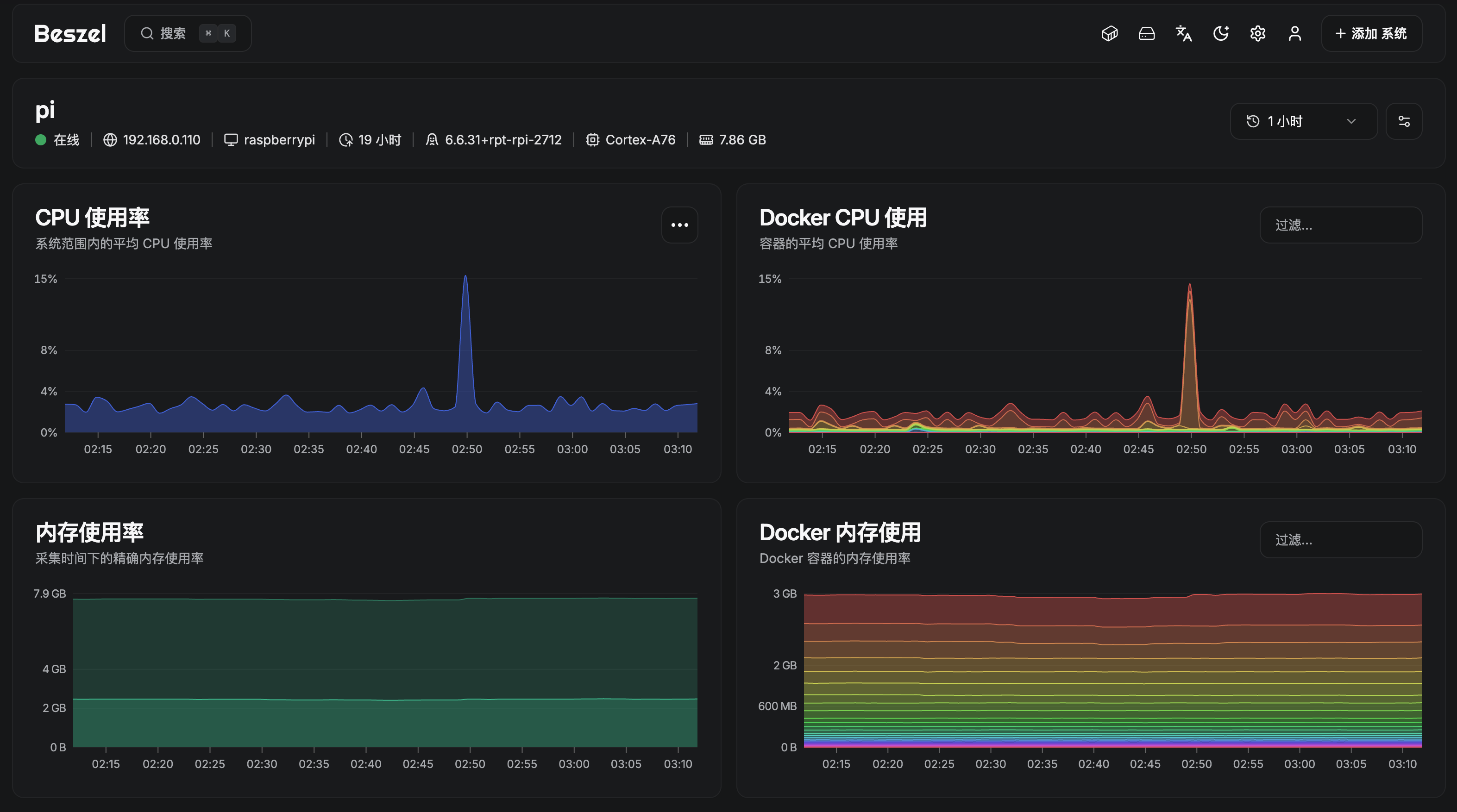
Beszel monitoring interface
Having run containers on Raspberry Pis for years, I never actually knew how much RAM each service was consuming. If Beszel hadn’t explicitly thrown errors, I wouldn’t have even known Raspberry Pi hardware supported container memory tracking!
A Bonus: Dual DLNA Services Coexisting (Jellyfin & Emby)
While reorganizing services, I wondered if Claude could help me get two DLNA services running side by side.
As-is state:
- Emby (host network) — discoverable by the TV ✅
- Jellyfin (bridge network +
9096:8096port mapping) — undiscoverable by the TV ❌
The original constraint: Jellyfin couldn’t switch to host mode because it collided with Emby on UDP port 1900.
Claude offered a genuine solution:
Bridge Mode Is Fundamentally Broken for DLNA at the Protocol Level
DLNA relies on two mechanisms: SSDP multicast (UDP 239.255.255.250:1900) for discovery, and HTTP for streaming content. The key is multicast—packets must reside in the same LAN broadcast domain to be received.
Docker’s default bridge:
1[Jellyfin 172.17.0.5]──veth─[docker0]──NAT──[eth0 192.168.0.110]──[LAN]Breaks in two places:
- When the TV sends M-SEARCH multicast packets to
eth0, Docker does not forward them to docker0. - Even if forwarded, Jellyfin advertises its location in SSDP packets as
172.17.0.5—which the TV cannot route to.
Port forwarding only solves TCP; multicast is fundamentally incompatible with bridge networks.
The Dead End of Host Mode
network_mode: host places the container directly in the host’s network namespace. Multicast traverses eth0 natively, and SSDP packets advertise the real LAN IP—which is why Emby always worked.
However, host mode forces all containers to share a single port namespace on the host:
- Emby binds
:1900→ OK - Jellyfin also attempts to bind
:1900→bind: address already in use
DLNA specifications mandate that SSDP discovery listen on port 1900. Two DLNA services cannot coexist in host mode.
macvlan Is the True Solution
macvlan is a built-in Docker driver that assigns each container its own MAC address and distinct LAN IP, attached directly to Layer 2 of the physical network interface. To the local network, each container appears as an independent physical device:
1[Emby          192.168.0.241] ┐
2[Jellyfin      192.168.0.242] ├─── eth0 ─── Router ─── TV
3[Raspberry Pi  192.168.0.110] ┘
Brilliant. All three problems vanished simultaneously!
Multicast works natively, each service binds port 1900 on its own IP, and SSDP packets broadcast routable LAN addresses.
1# Create network once
2docker network create -d macvlan \
3  --subnet=192.168.0.0/24 \
4  --gateway=192.168.0.1 \
5  --ip-range=192.168.0.240/29 \
6  -o parent=eth0 \
7  lan
The .240-.247 IP block must be excluded from your router’s DHCP pool beforehand to prevent IP conflicts.
Update Jellyfin’s compose file in two spots—remove ports:, add networks with a static IP:
 1services:
 2  jellyfin:
 3    # ...keep volumes / devices / env
 4    networks:
 5      lan:
 6        ipv4_address: 192.168.0.242
 7
 8networks:
 9  lan:
10    external: true
Do the same for Emby: remove network_mode: host, add macvlan + .241:
 1services:
 2  emby:
 3    # ...keep volumes / devices / env
 4    networks:
 5      lan:
 6        ipv4_address: 192.168.0.241
 7
 8networks:
 9  lan:
10    external: true
Things to Keep in Mind
- Host cannot communicate directly with macvlan containers—the Linux kernel blocks local ARP loopback. Browsers, TVs, and phones on other devices are unaffected, but the Raspberry Pi host cannot reach Emby or Jellyfin directly.
- WiFi rarely works—macvlan requires the NIC to accept multiple MAC addresses in promiscuous mode, which most wireless chipsets reject. Wired Ethernet works reliably.
- Static IPs in compose—make sure the assigned range is carved out of the DHCP pool on your router.
- Jellyfin 10.9+ DLNA is now a plugin—remember to install the DLNA plugin inside Jellyfin beforehand.
After switching, both Emby and Jellyfin show up on the TV without conflicting.
Any discovery protocol relying on multicast (mDNS/Bonjour, WSDD, SSDP, Avahi) suffers the same fate under Docker. Macvlan is the only networking mode that allows them to function cleanly.
Wrapping Up
Here is what the setup looks like now:
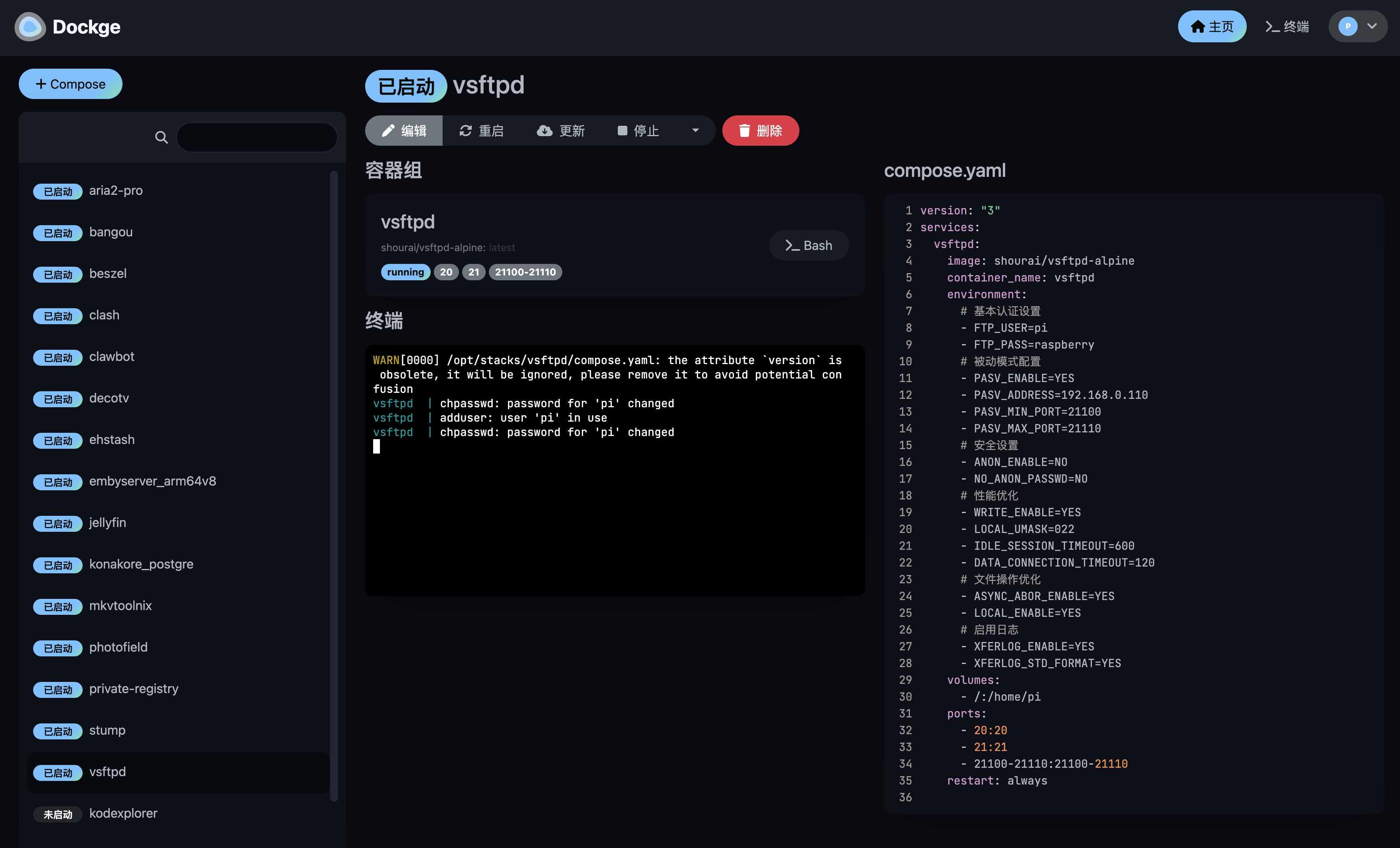
Dockge management interface
Portainer is gone for good.
To summarize the gains (ranked by impact):
- Fully reorganized and audited my container stacks.
- Dockge + Beszel make a fantastic combo—monitoring is extremely lightweight.
- Dockge’s UI maps 1:1 to underlying compose files, allowing Claude Code to manipulate files directly.
- Emby and Jellyfin DLNA coexist harmoniously.
- Implemented immutable tags for auditable, rollback-friendly deployments.
- Fixed several silently degraded public image services along the way.
A takeaway lesson:
Every abstraction layer carries the hidden cost of “deciding on your behalf.” While enjoying convenience, you surrender part of your visibility.
Fortune favors the bold.
 Hi, I’m CheerChen.